 Omnimux
Tutorials
Seven short guides, in the order most people need them: get a machine in, open a session that survives a tunnel ride, hear from your coding agents, move files around, reach a computer that is not exposed to the internet, work a terminal with your thumbs, and keep the lot private.
1Add a machine
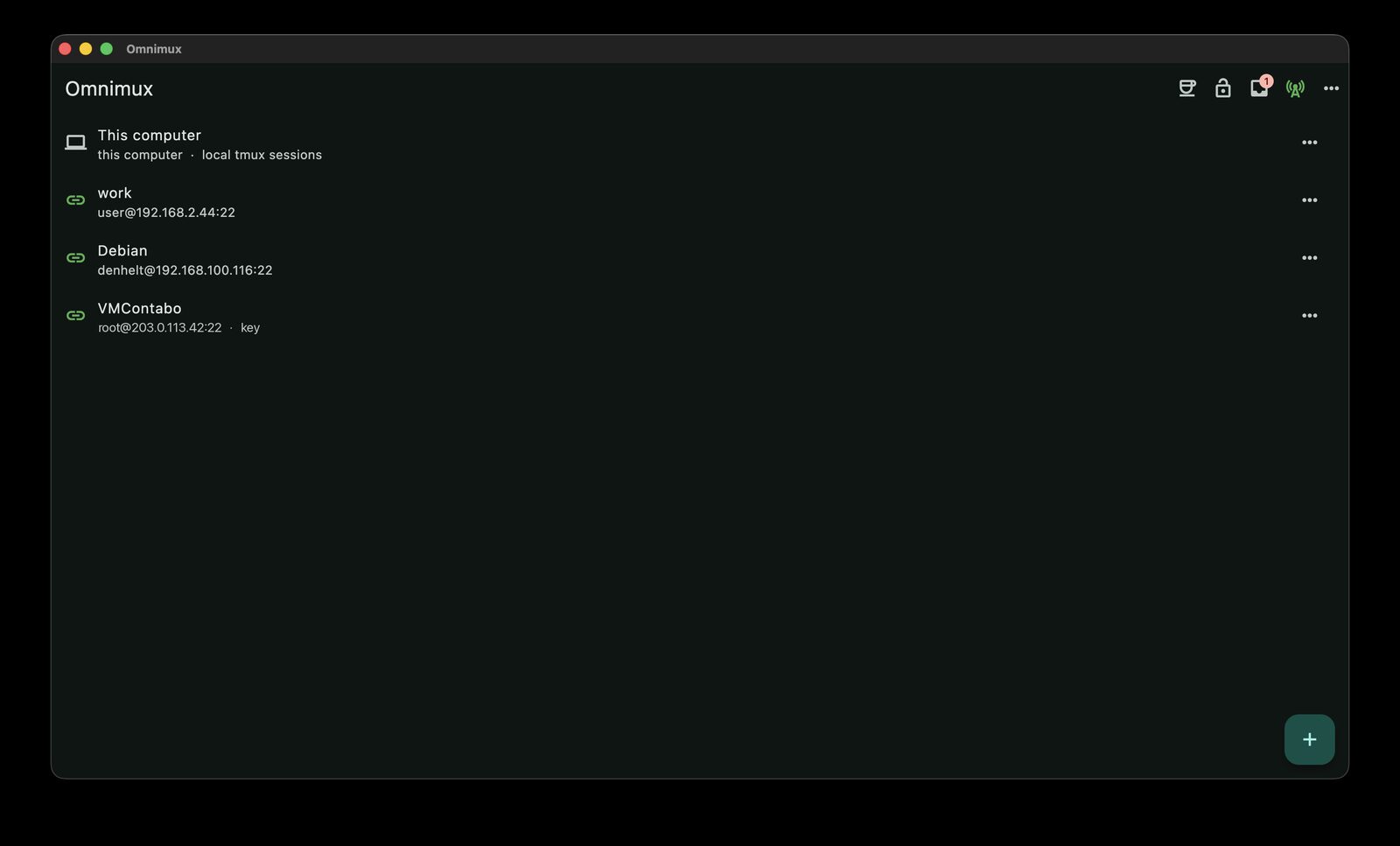
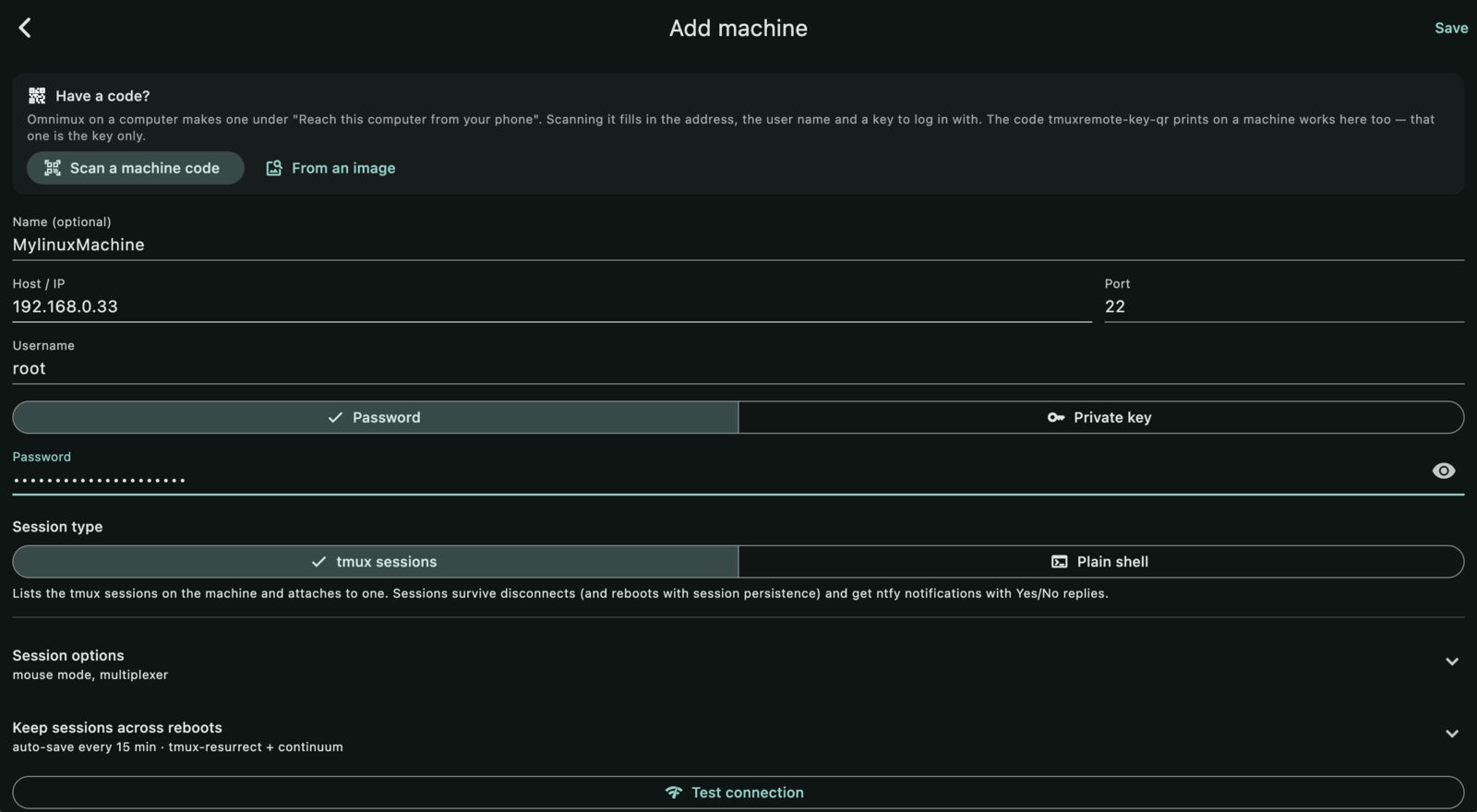
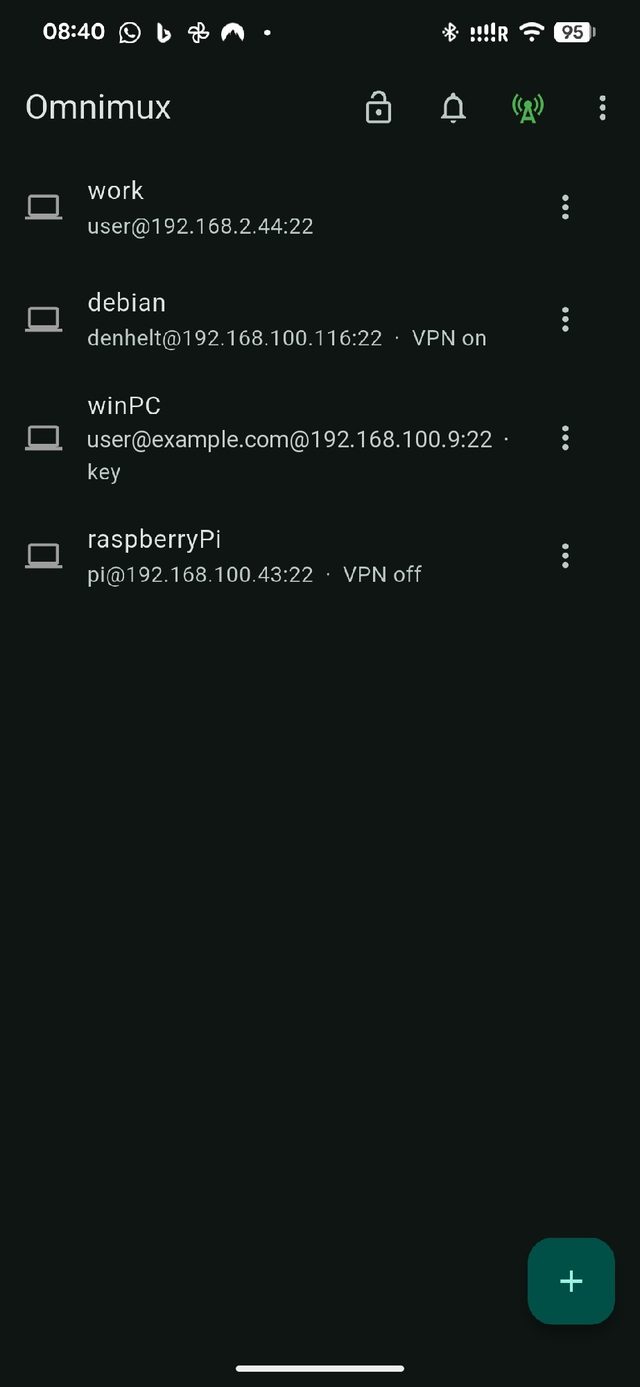
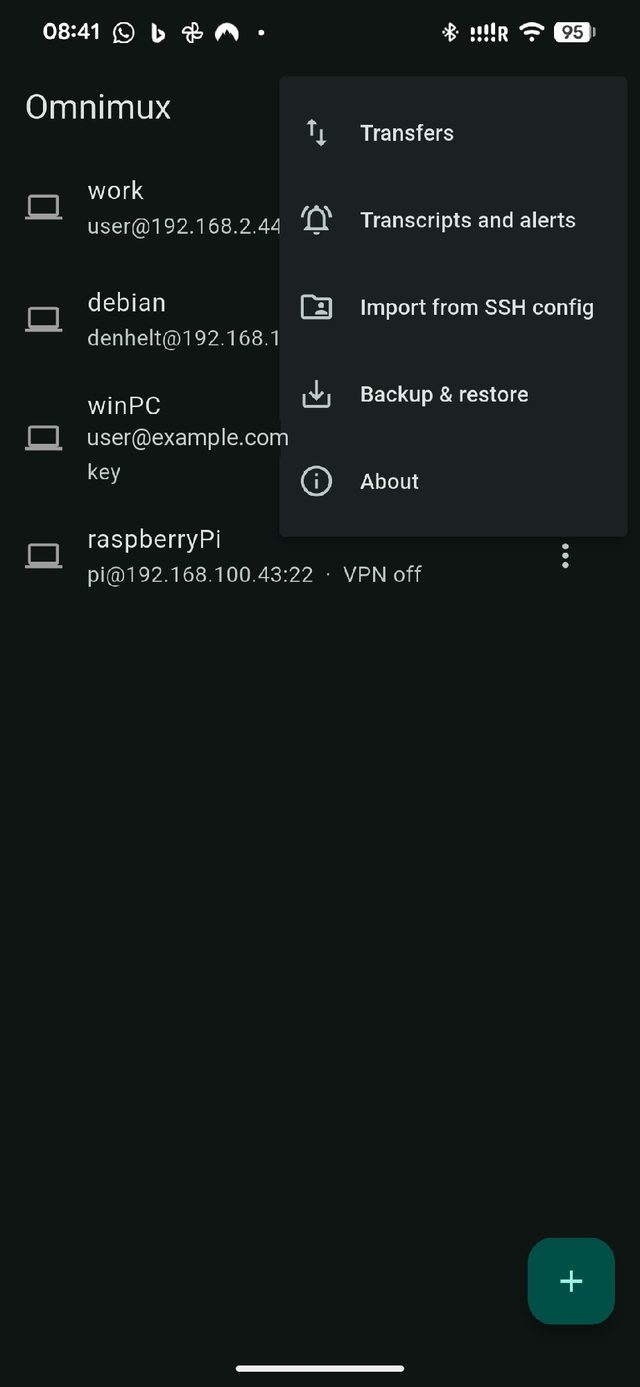
A machine is an address, a login, and nothing else kept anywhere but your own device. The Machines tab lists them; + adds one. There are three ways to fill the form, and only the first involves typing.
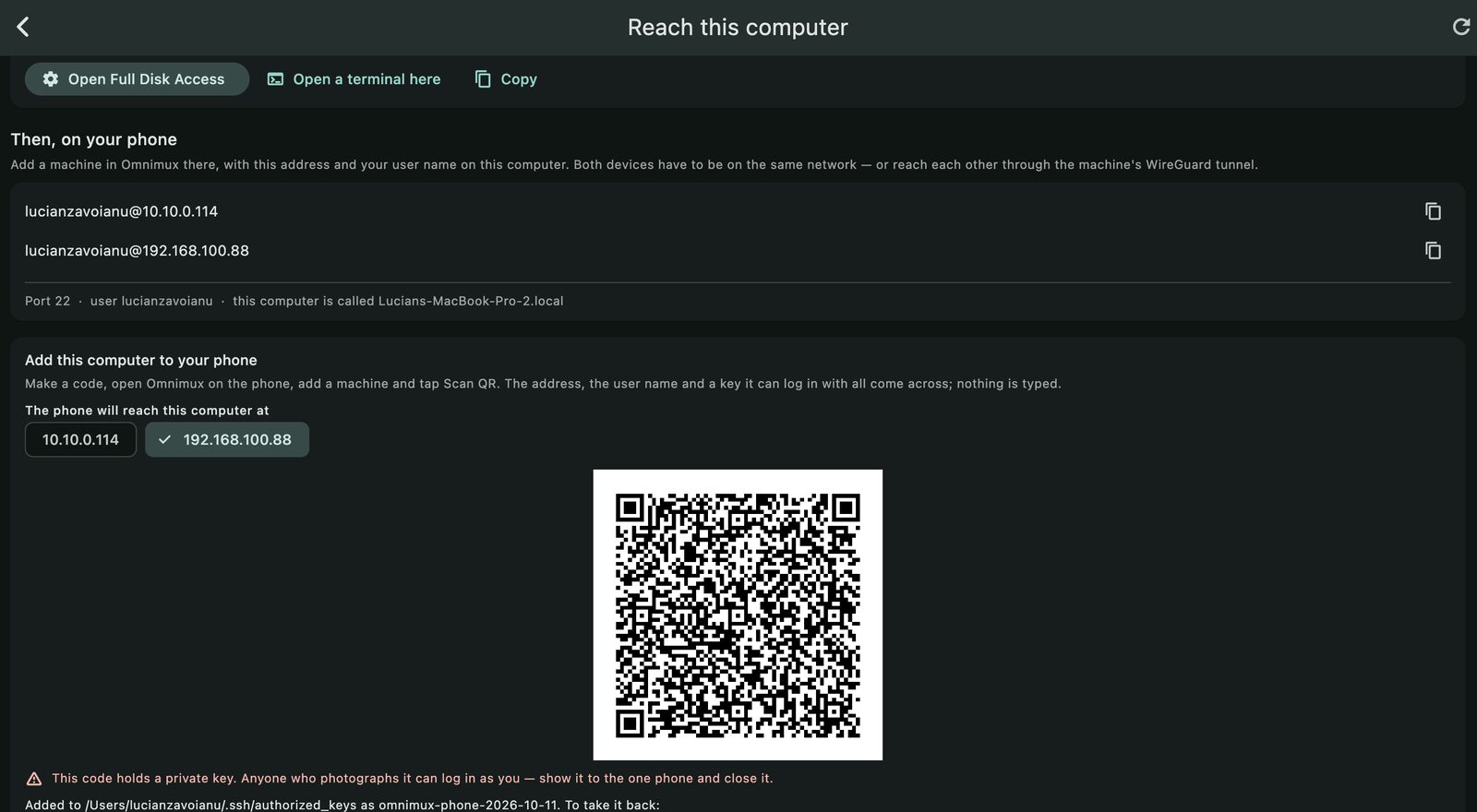
Scan a pairing code (quickest)
On the computer you are sitting at, open the desktop app and choose Let a phone in. It
makes a key for the phone, authorises it on that computer, and puts the address, the user and
the key into one QR code. On the phone: + → Scan a machine code. Nothing is
typed, and the key is that phone's own — removing one line from
~/.ssh/authorized_keys takes it back.
Type it
- Machines → +.
- Address and port, then the username.
- A password, or paste a private key. A key can also be scanned from a QR code, or read out of a photo of one on a desktop without a camera.
- Save. The first connection shows the machine's SHA‑256 fingerprint: that key is then pinned, and a changed one is refused rather than shrugged at.
Import what you already have
If the machines are already in ~/.ssh/config, the app reads it: hosts, ports,
users, identity files and ProxyJump chains come across in one go, and you pick
which of them to keep.
The computer you are sitting at is already there. On desktop, This computer appears at the top of the list with local tmux (or a plain shell if tmux is not installed). It is found at launch and never stored.
2Your first session
Tap a machine and you get its sessions, not a bare shell. That is the point of the thing: a tmux session keeps running when the train goes into a tunnel, and the app re-attaches to the same one when the signal comes back.
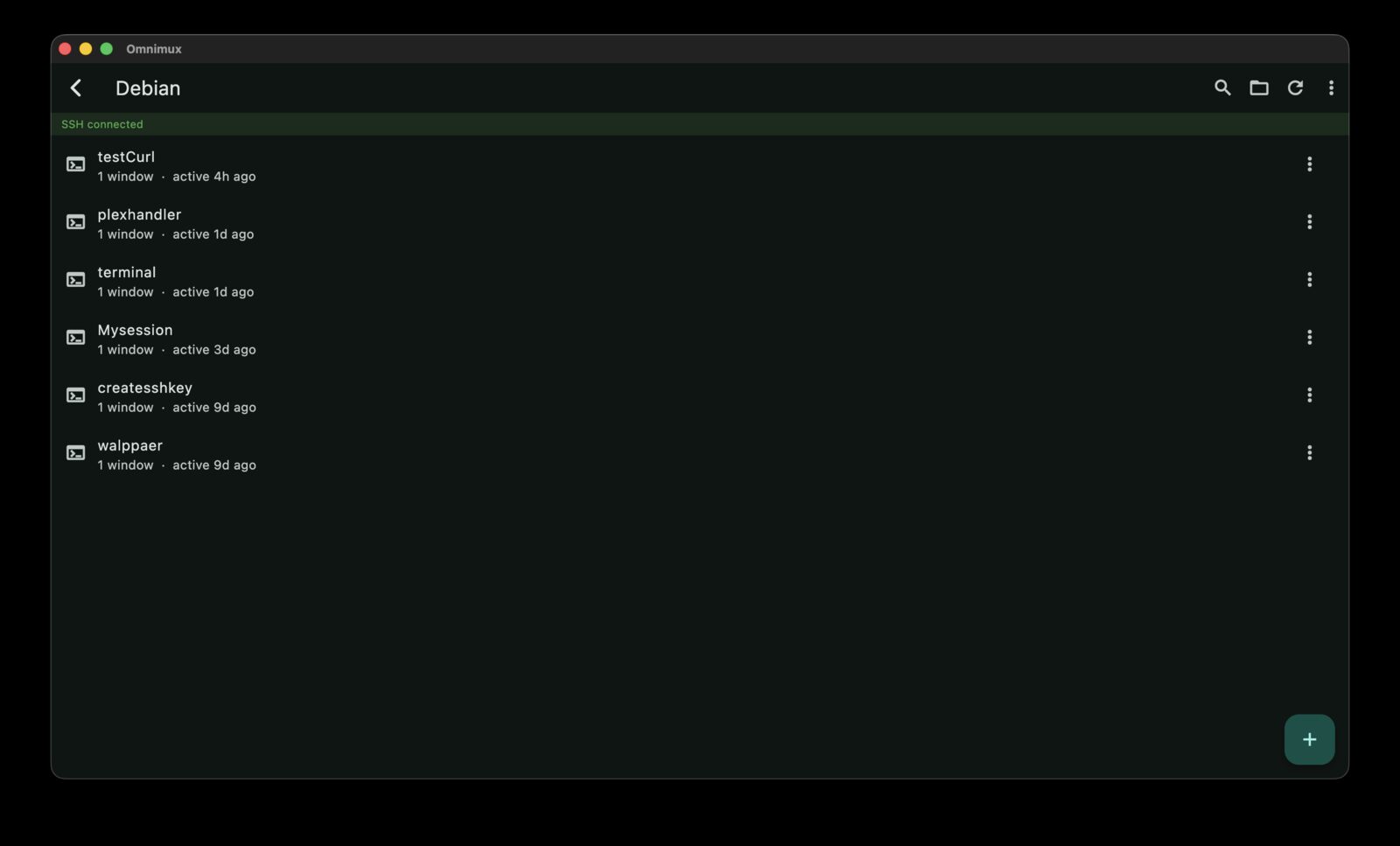
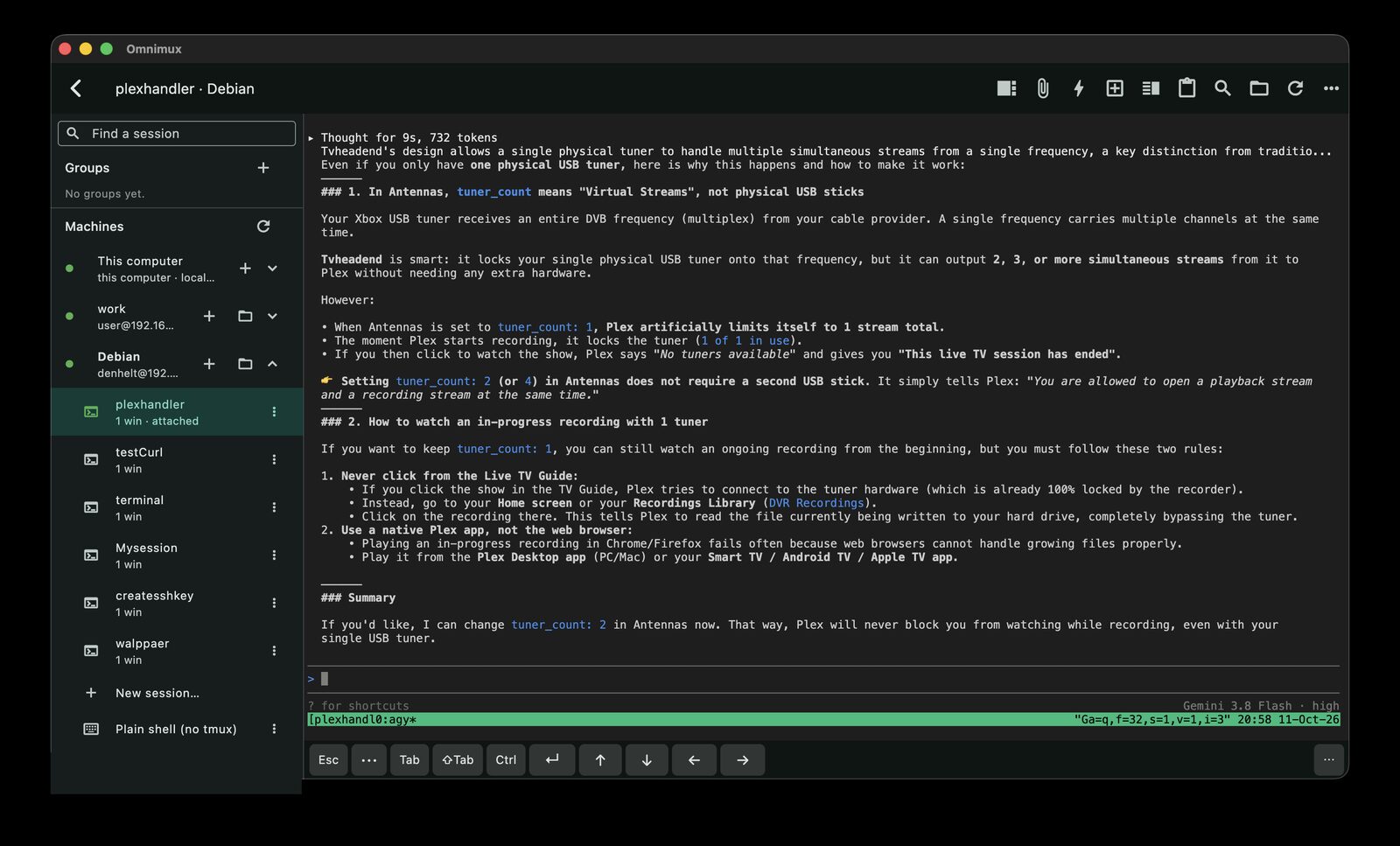
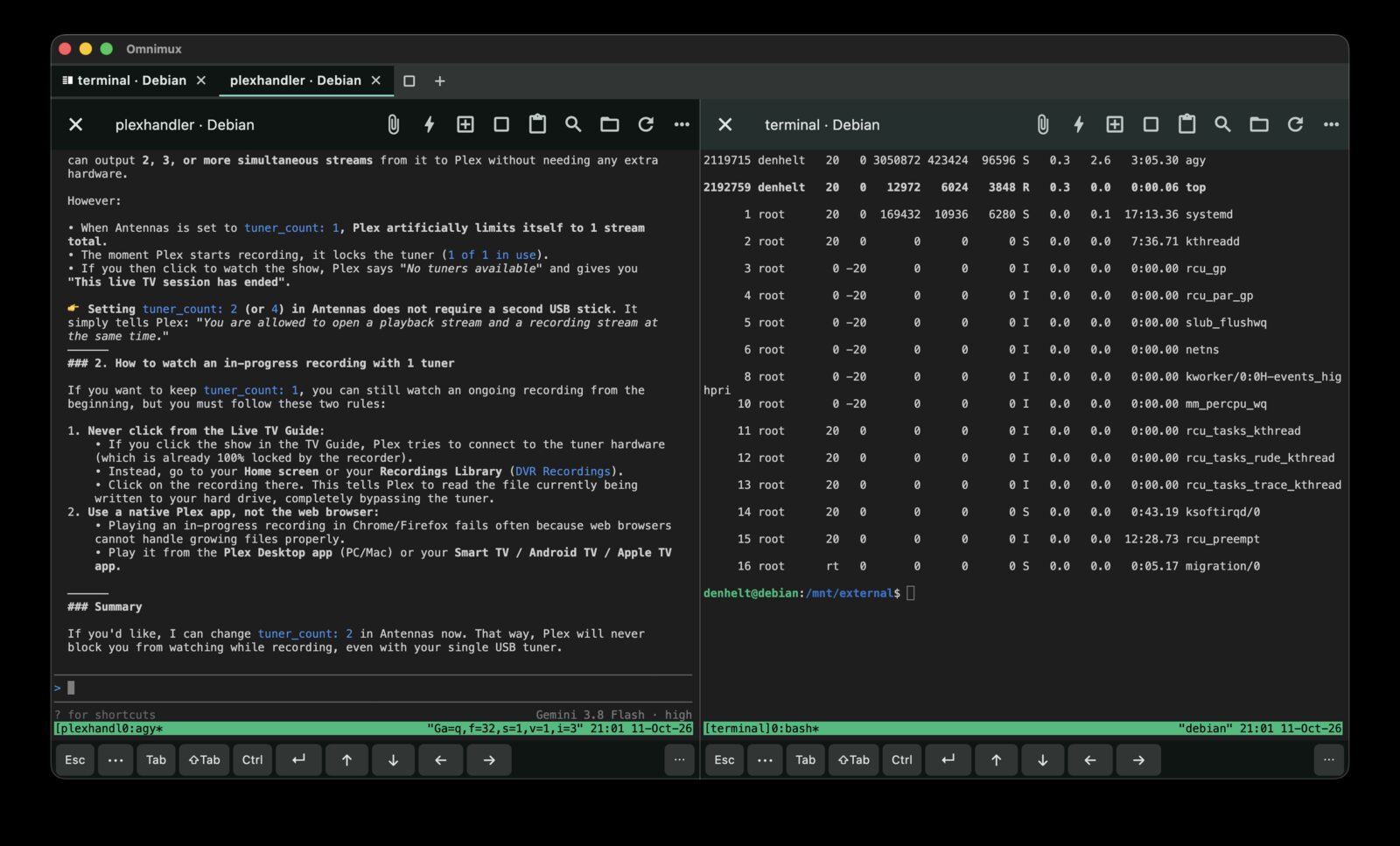
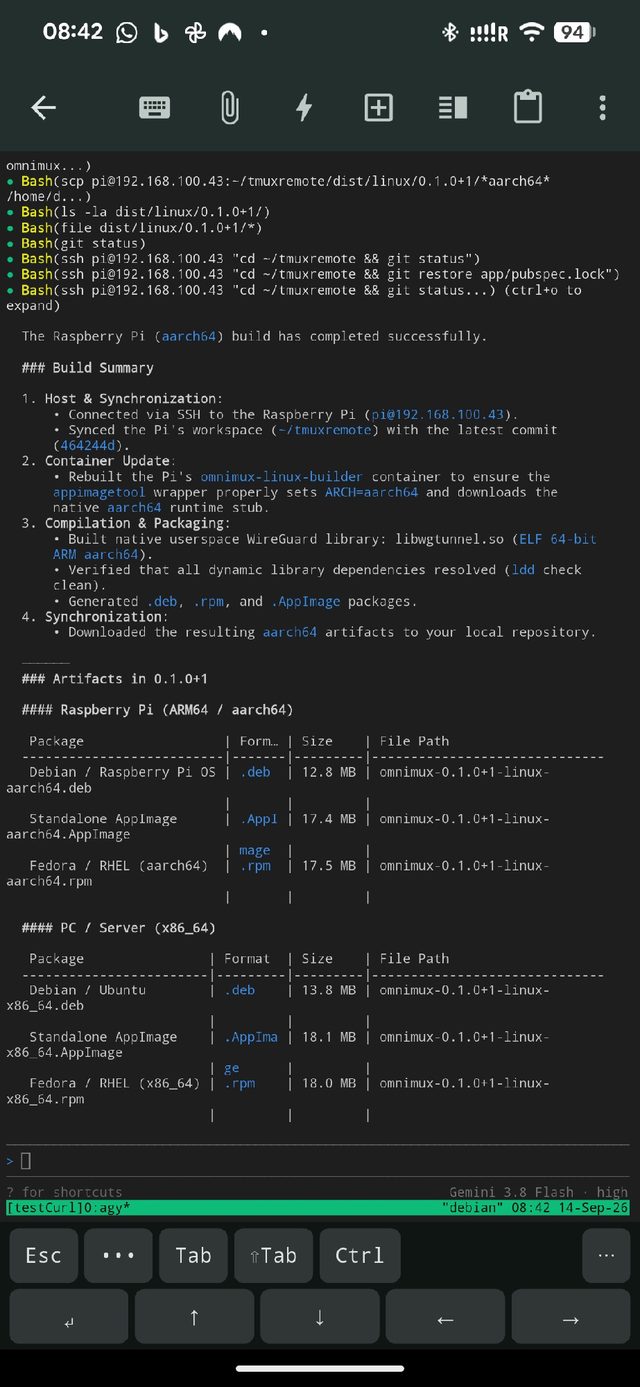
- Tap the machine. The app detects tmux or psmux on its own; a machine with neither is offered the right one for its system, with the exact command it will run.
- Tap a session to attach, or + for a new one. The ⋮ menu opens a second session next to the first.
- Leave. Lock the phone, lose the signal, come back tomorrow — the session is where you left it, because it never belonged to the phone.
Sessions can be grouped, named and searched, which matters once there are more of them than fit on a screen. On a machine that reboots, sessions can be brought back automatically if you asked for that when the toolkit was installed.
3Hear from your coding agents
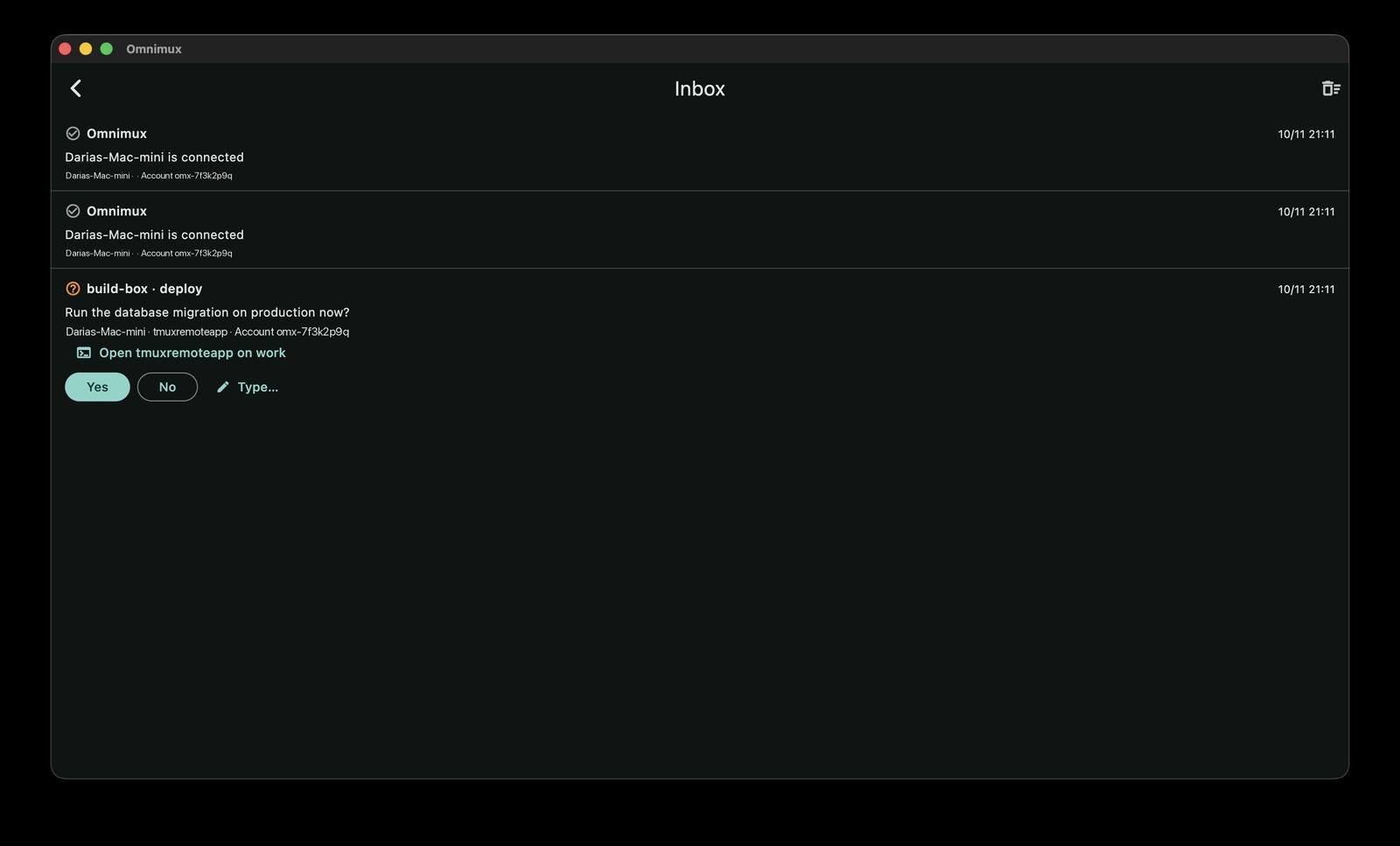
An agent that stops to ask a question is an agent that has stopped working. Omnimux puts the question on your phone with Yes and No on it, and the answer goes back into the pane that asked.
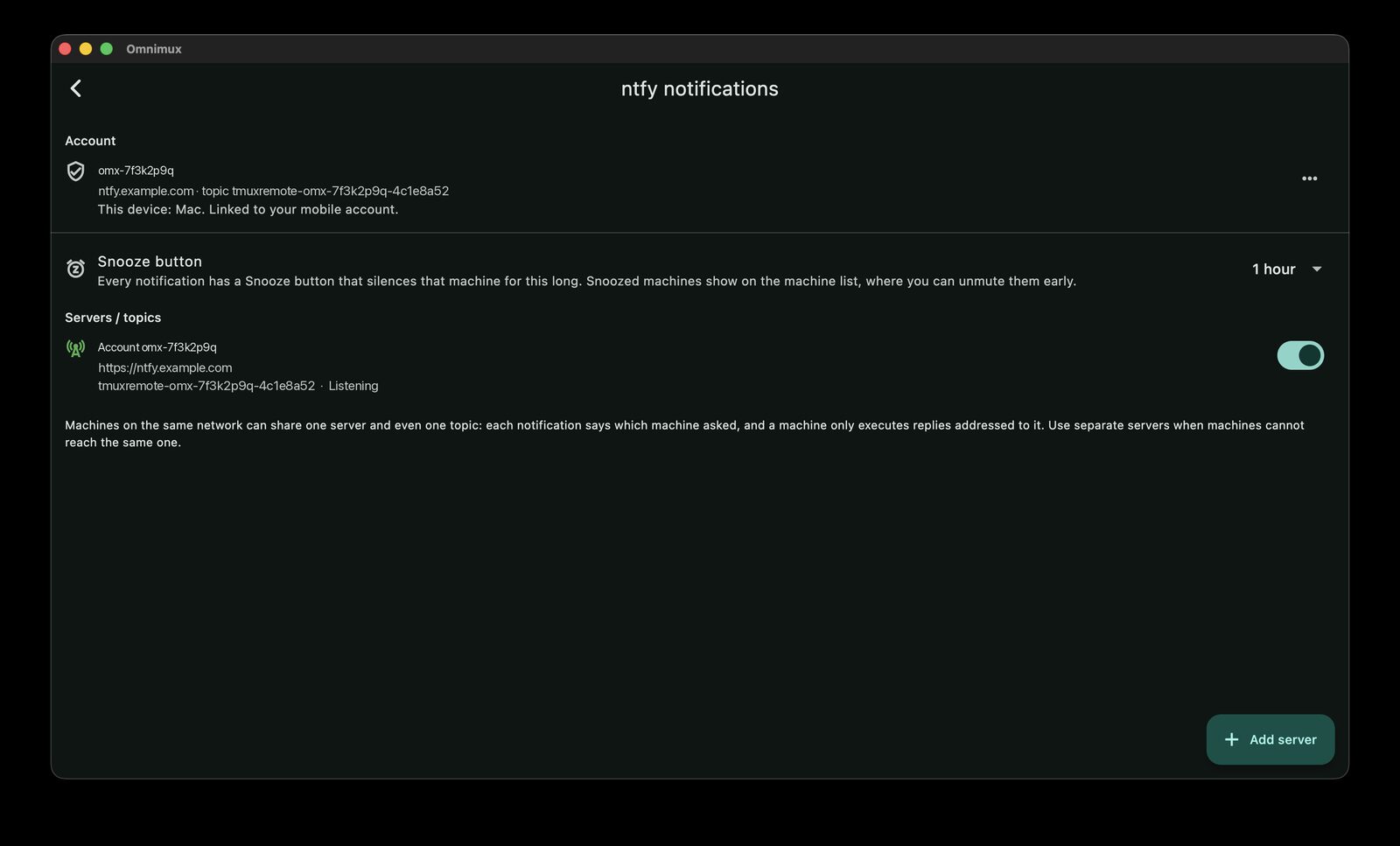
- Create my account in notification settings (on iOS or Android). One tap makes a private topic and a token for this device, and shows a hashcode to keep somewhere safe.
- On the machine: ⋮ → Set up notifications. The toolkit goes up over SFTP and installs itself; agent hooks for Claude Code, Codex, Gemini and Antigravity are merged in if you ask for them.
- Other devices join the same account by scanning its pairing code, or with the username and hashcode.
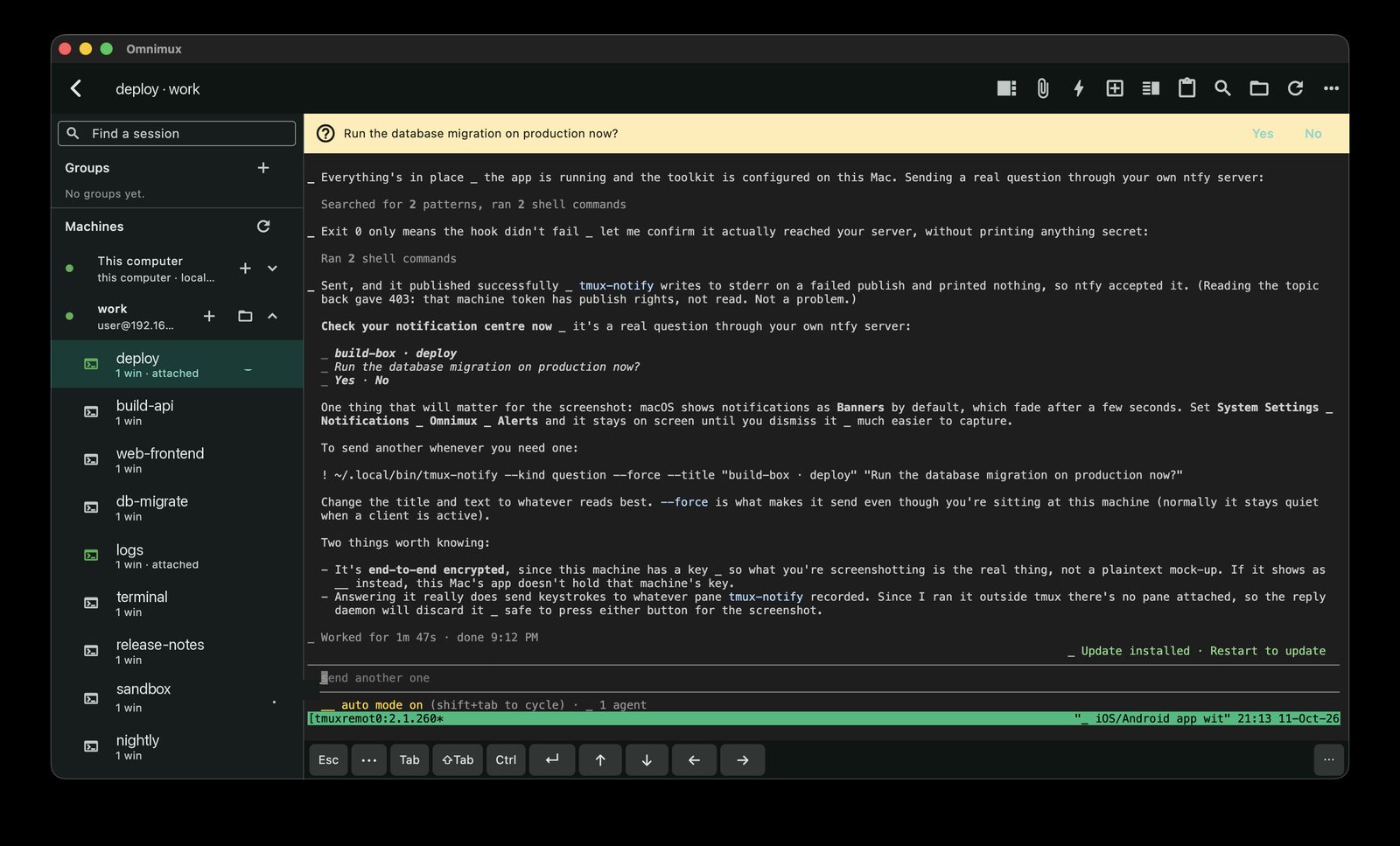
Nothing of the question passes through anyone who can read it. Bodies and replies are encrypted end to end with ChaCha20‑Poly1305; the ntfy server and the push relay see a title and ciphertext. A reply never goes through the relay at all — the phone posts it straight to your own ntfy server, and the daemon on the machine runs it only if the nonce matches the question that asked, once.
A notification you would rather answer in words has a reply field. A machine that is being noisy can be snoozed from the notification itself, and unmuted early from the machine list.
4Move files between machines
The files screen is a two-ended thing: a listing on the machine, and everything you can send to it or pull from it — including from another machine that has no route to the first.
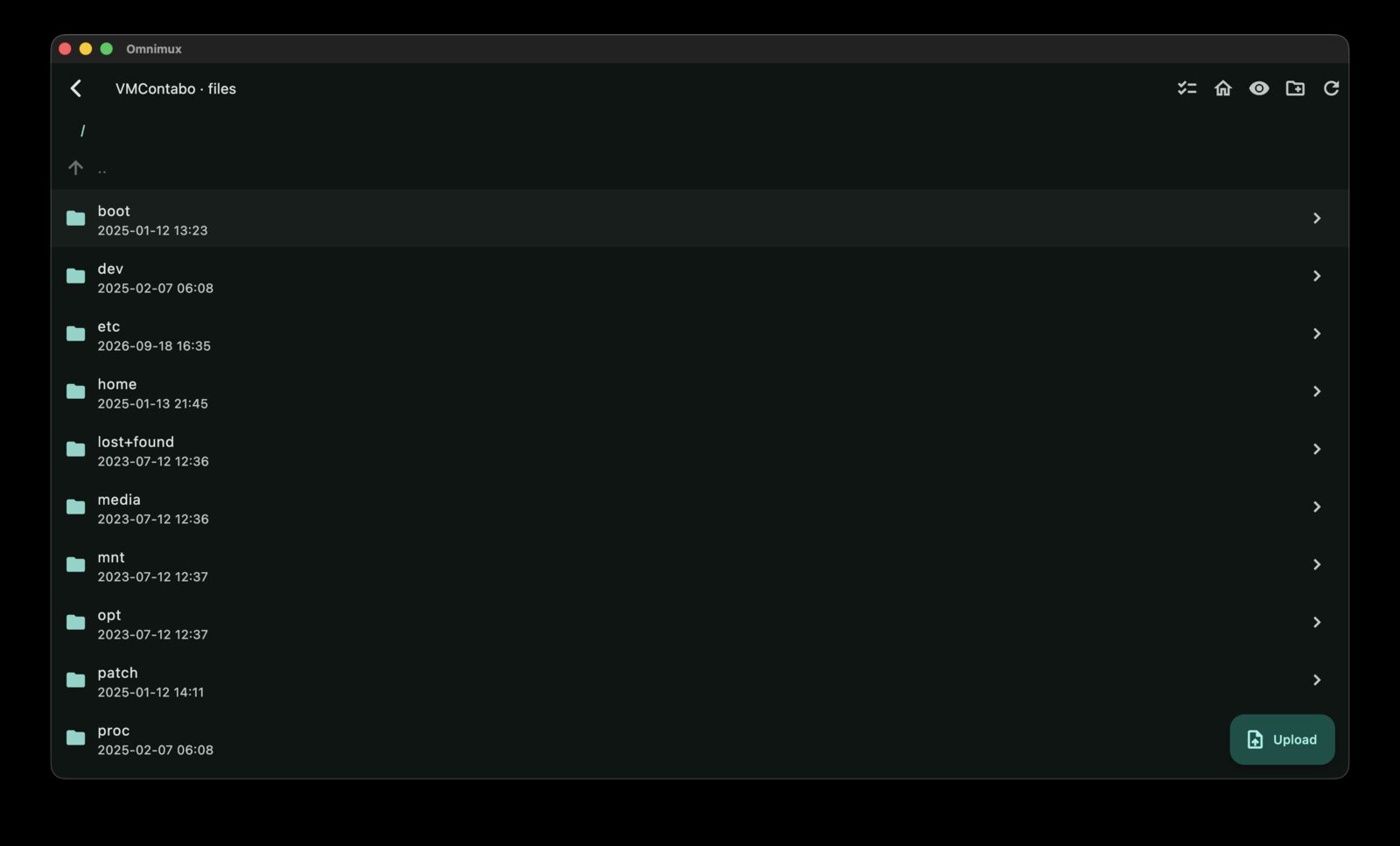
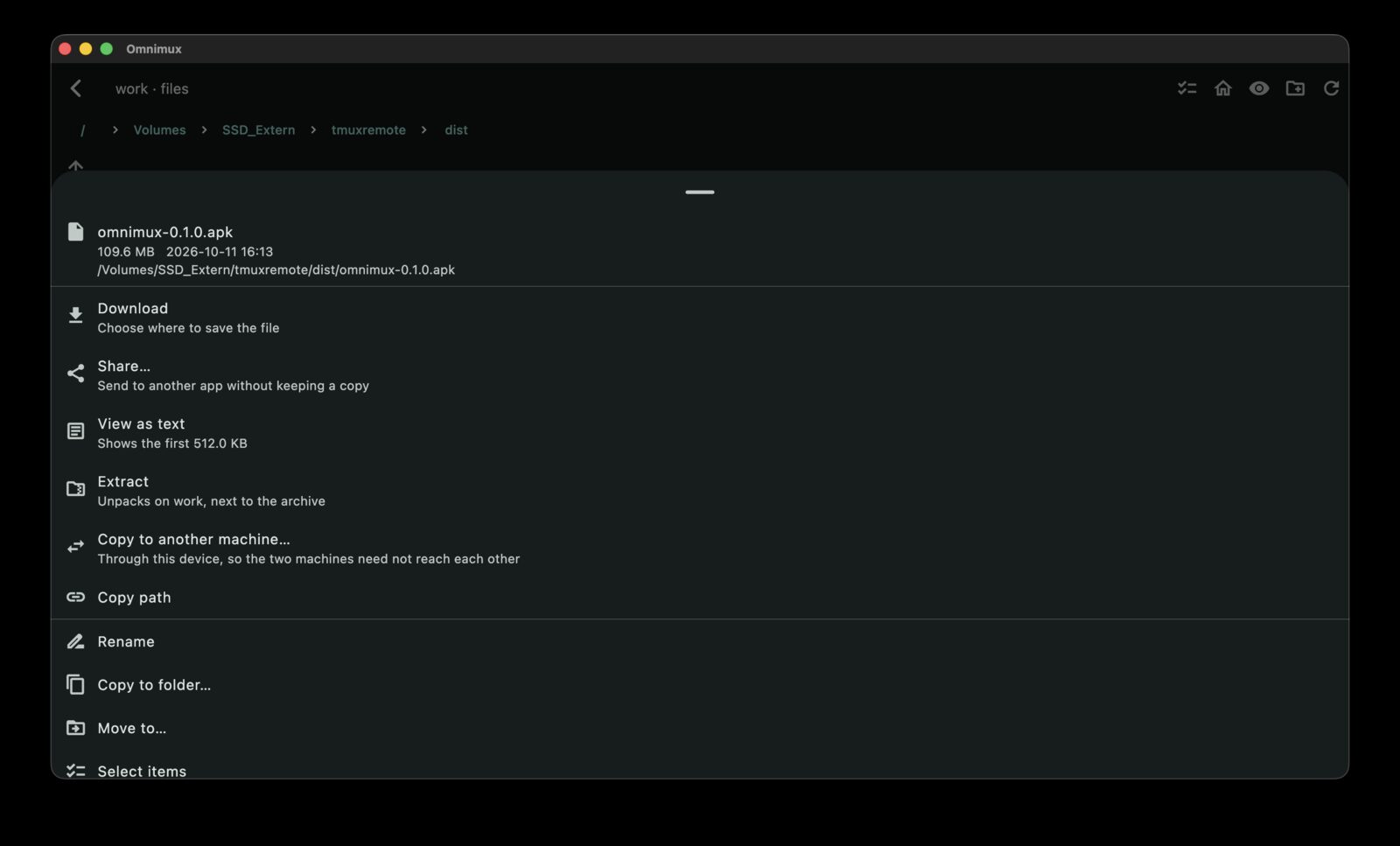
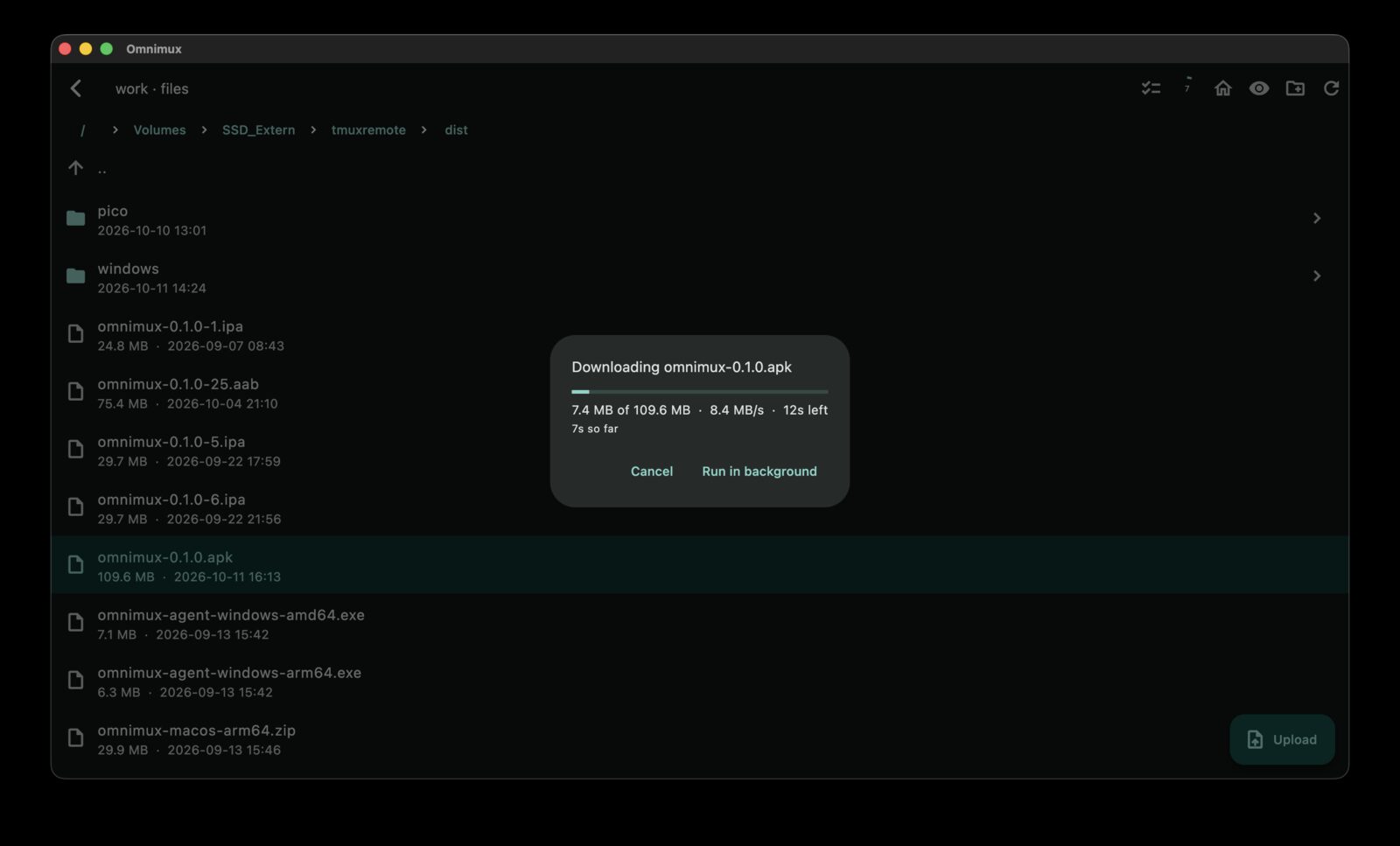
- Copy between machines. Pick a destination machine and the bytes go through your device, which is often the only thing that can see both.
- Folders, and no size limit. Whole directory trees, and transfers that survive a bad connection by resuming rather than starting over.
- It keeps going when you leave. Navigate away, open another session, lock the phone — the transfer carries on and stays visible.
- Archives can be extracted where they land, and a file the server says is not yours can be deleted, moved or renamed as root after it asks.
5Machines you cannot reach directly
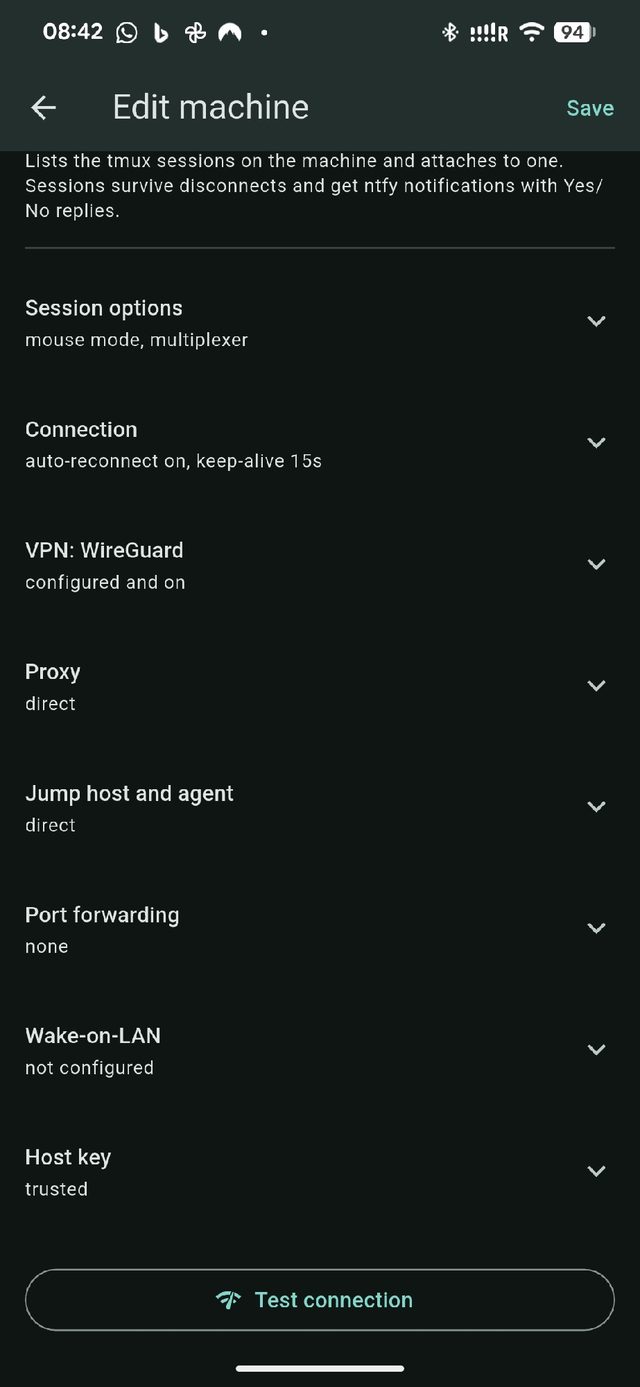
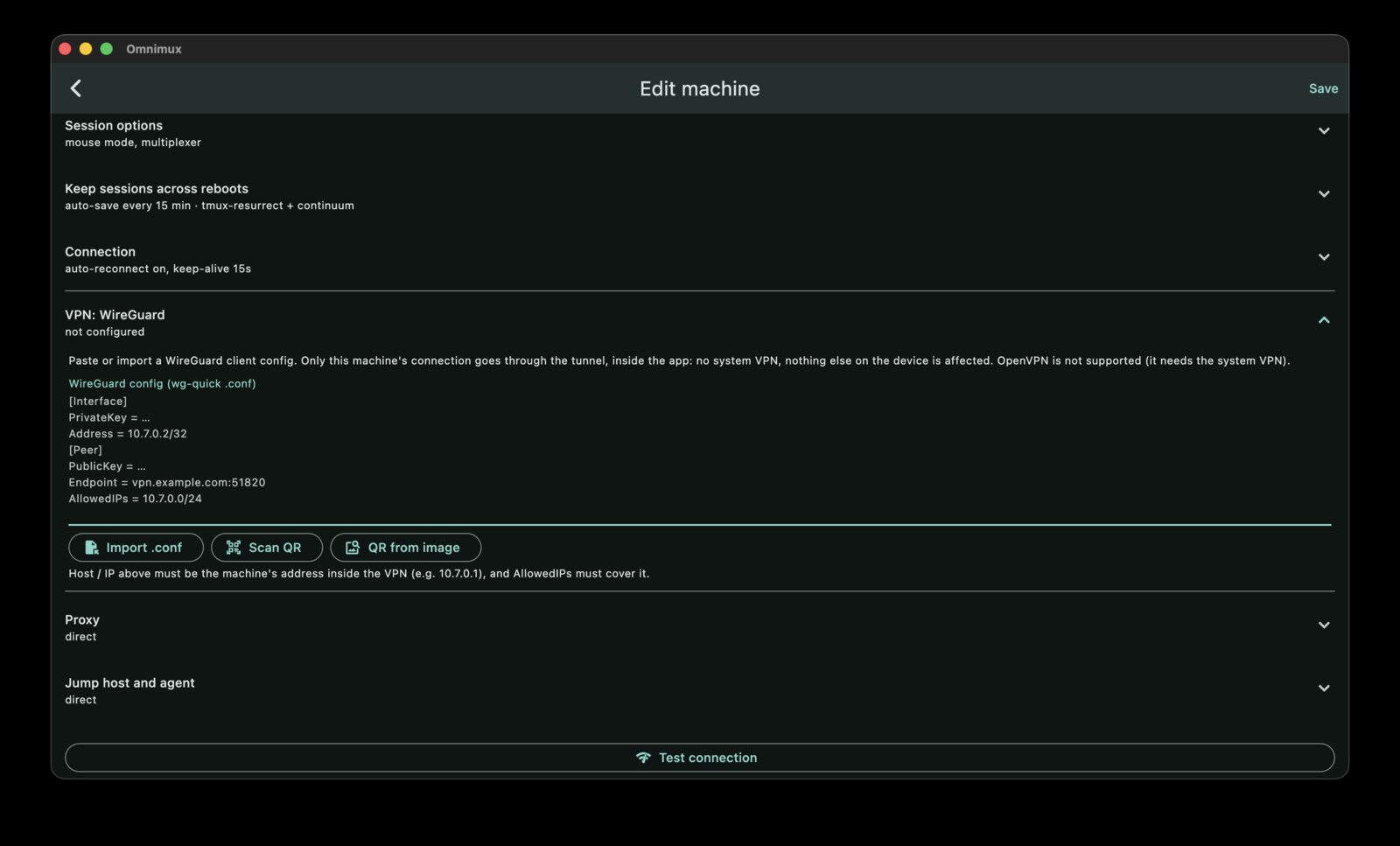
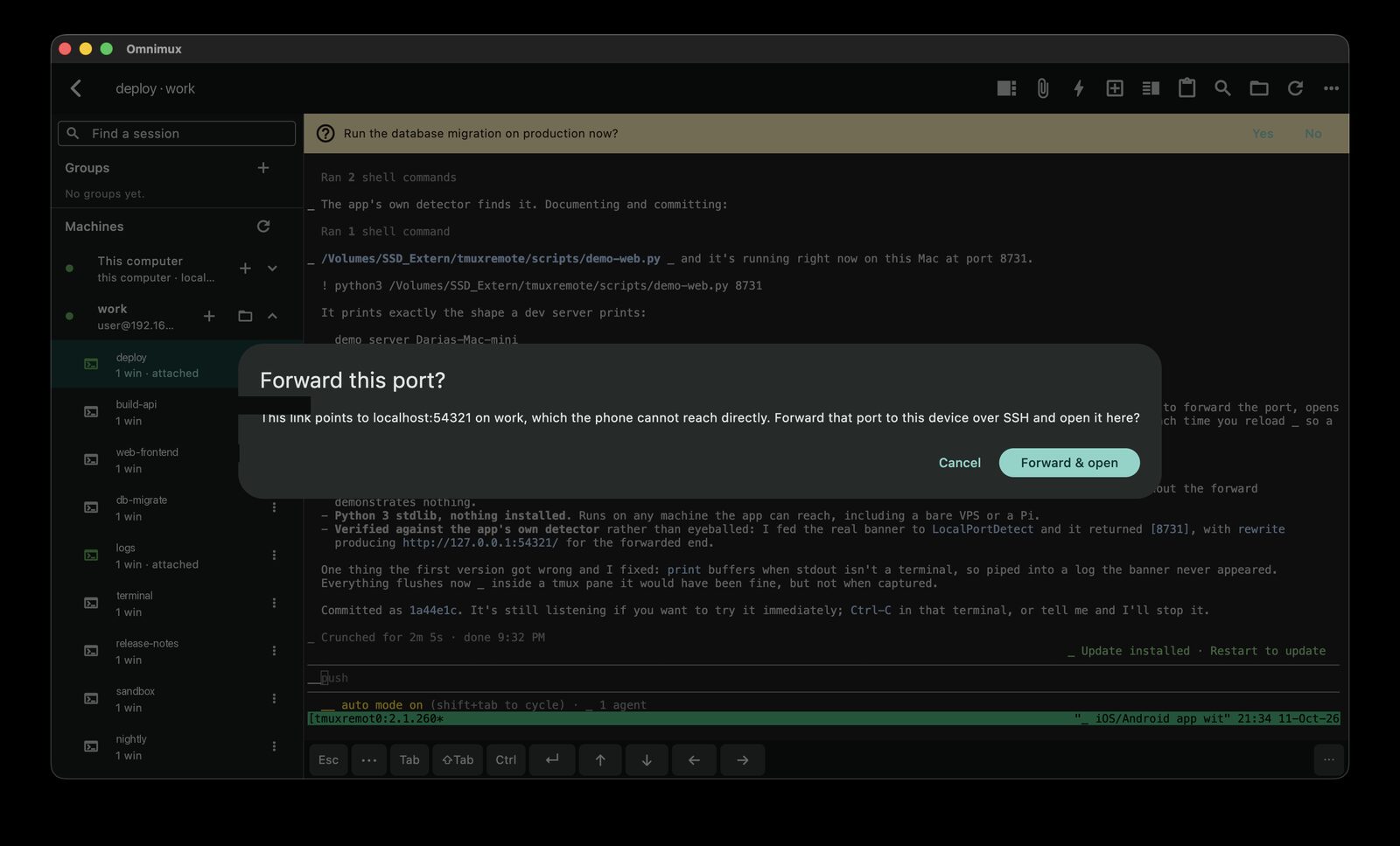
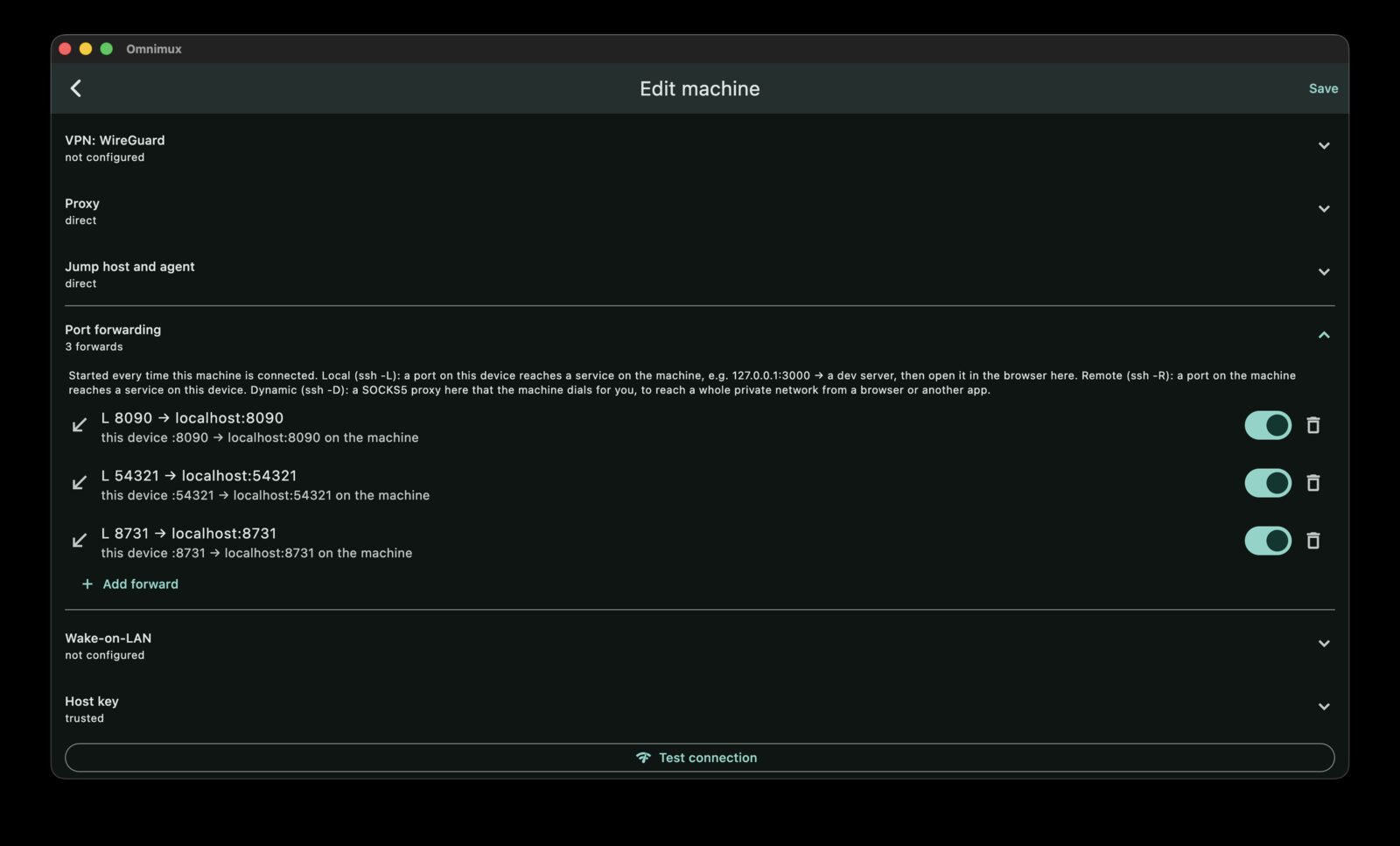
Most interesting machines are not on the internet, and should not be. Omnimux gets to them the same ways you would from a laptop, with the configuration living on the machine entry rather than in a file you have to remember.
| Situation | What to use |
|---|---|
| Home machine behind a router | WireGuard — paste the config or scan its QR code; the tunnel is inside the app, no VPN profile on the device |
| A box reachable only through another | Jump host, the same idea as ProxyJump, chained as deep as you need |
| A network that only lets you out through a proxy | SOCKS5, HTTP CONNECT, a WebSocket, or a proxy command |
| A web UI running on the machine's localhost | Port forwarding — a forward is offered the moment the machine starts listening, and opens in the app |
| A machine that is asleep | Wake‑on‑LAN, or a Raspberry Pi Pico W for laptops whose Wi‑Fi dies in sleep |
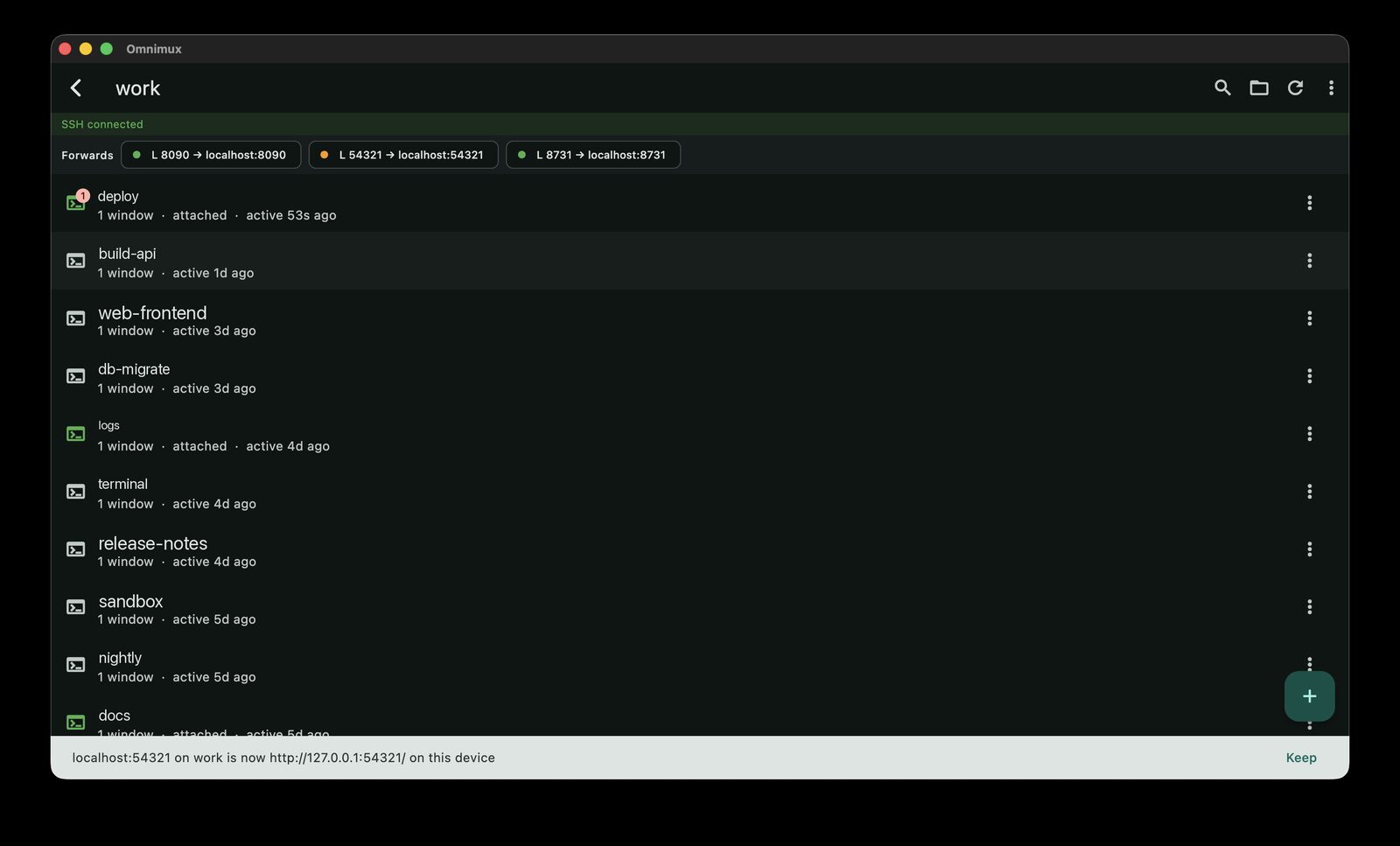
Agent forwarding offers only that machine's own key. An agent signs whatever it is asked to sign, so forwarding a whole keyring would hand one machine the keys to every other.
6A terminal you can actually work by thumb
A phone keyboard was not built for this, so the app changes what it can and gets out of the way for the rest.
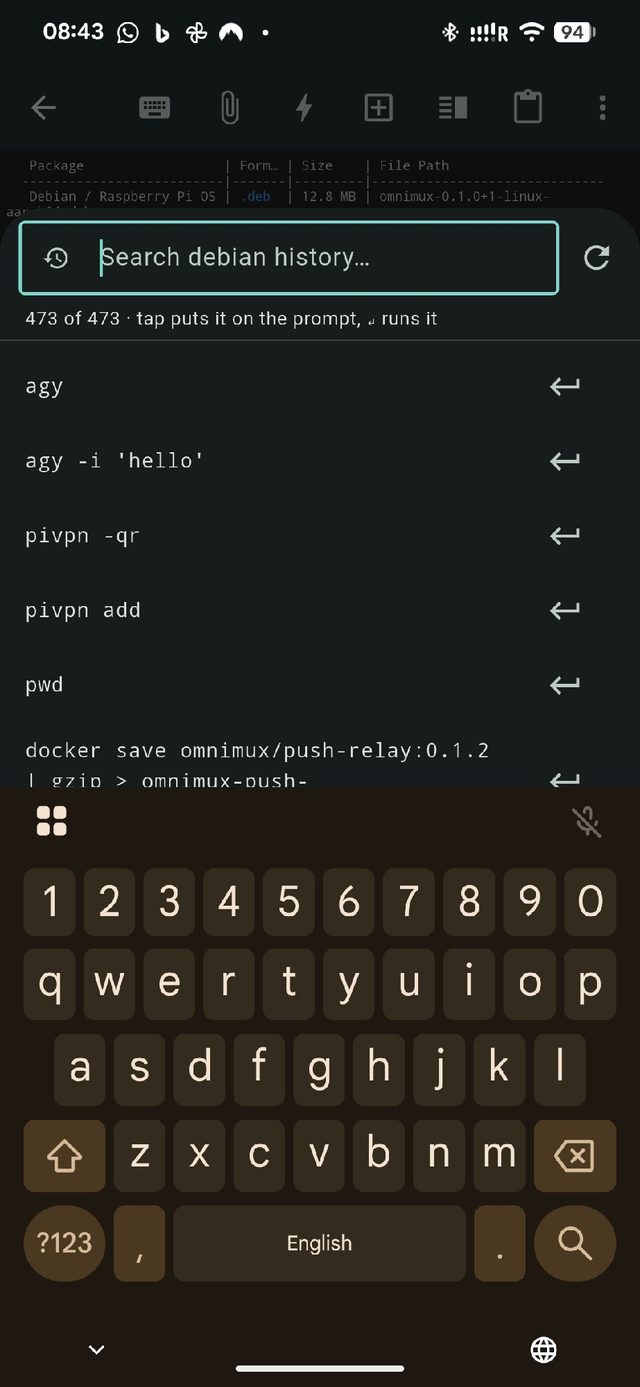
^R opens the machine's own shell history, filtered live. Tap a line to put it on the prompt.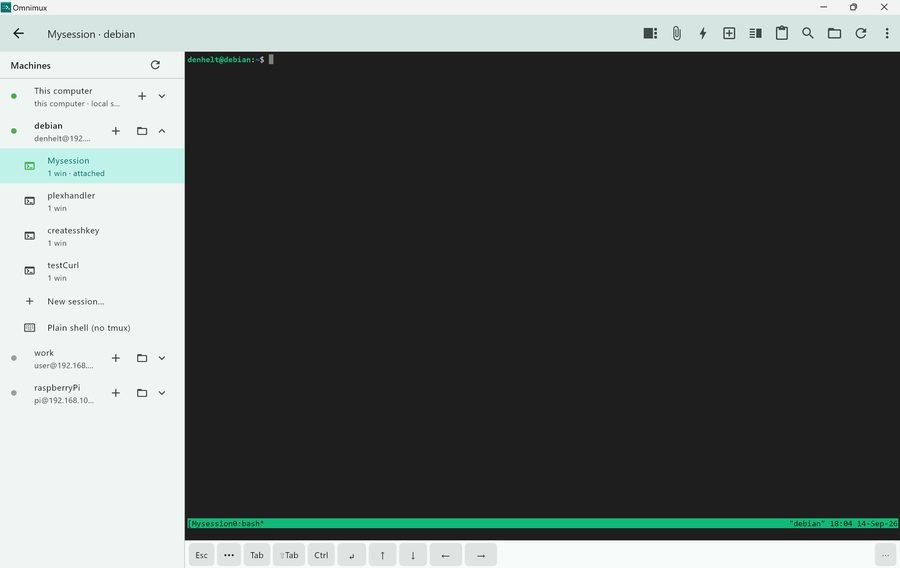
- The key bar has what a terminal needs and a phone lacks: Esc, Tab, Ctrl, Alt, arrows, pipe, and a key that types your login password for a
sudoprompt without putting it in the history. - Tap where you want the cursor. A tap on the line the cursor is on moves it there, rather than making you hold an arrow key down.
- Select by touch: double-tap a word, a third tap takes the line, and the handles do what handles do everywhere else.
- Search the scrollback from the magnifier, with matches highlighted and steppable.
- The keyboard is the plain one — no autocorrect, no capitalisation, no smart quotes, because a shell wants exactly the characters you typed.
- Snippets keep the commands you always retype, and shortcuts on the main screen run one against a machine without opening a session at all.
7Keeping it private
The whole design assumption is that nothing of yours should pass through anyone else's cloud, and that a lost phone should not be a lost fleet.
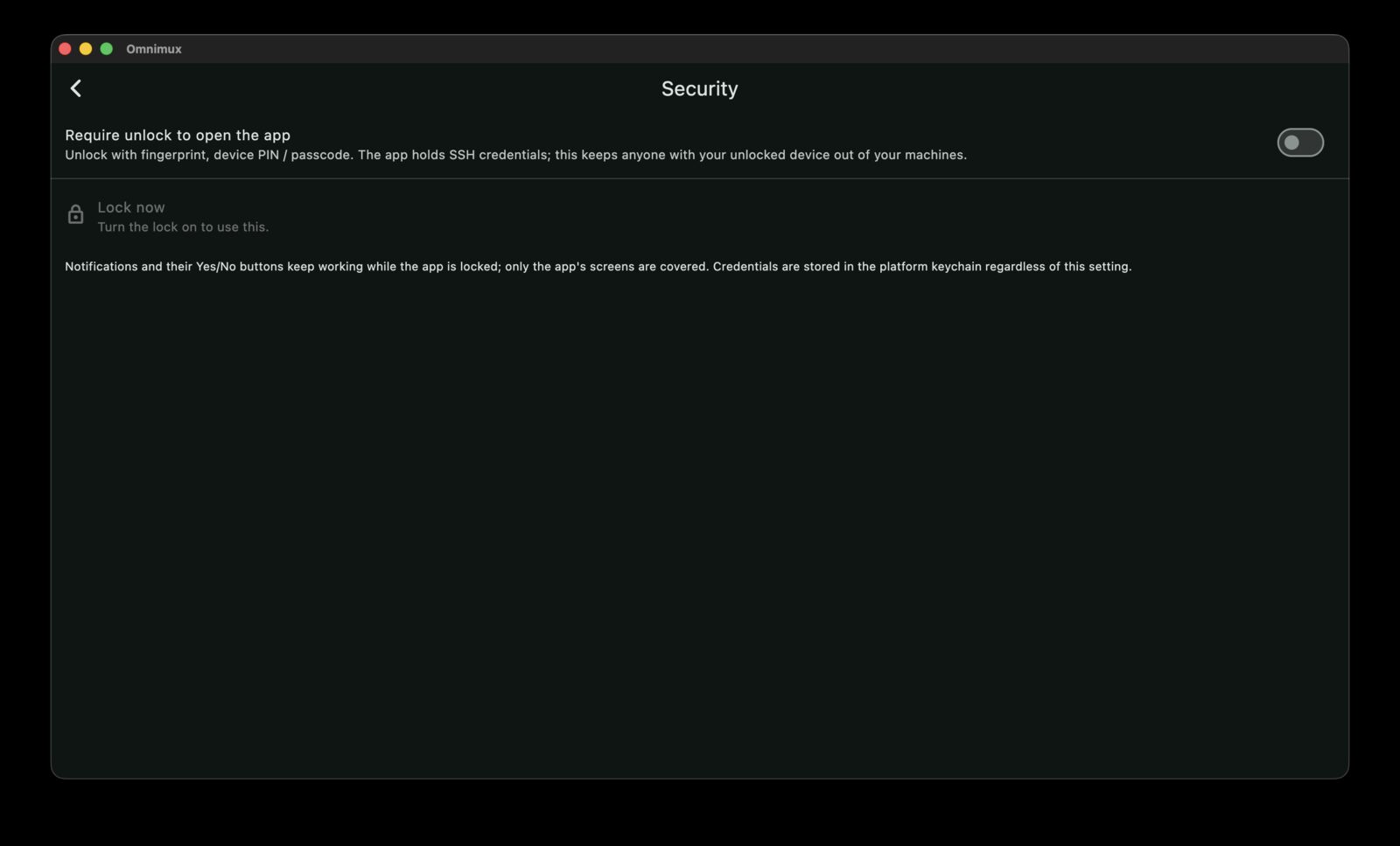
- Host keys are pinned per host and port. The first connection shows the fingerprint; a key that changes afterwards is refused, not explained away.
- Credentials live in the platform keychain, and on iOS they are marked device-only on purpose — so they cannot travel to another phone inside an iCloud backup.
- App lock uses Face ID, Touch ID or the device PIN, and the app covers itself until that has been answered.
- Moving to a new device is the app's own encrypted backup: a passphrase of at least twelve characters, a key derived with 600k iterations, and a temporary copy that is deleted after.
- Self-host everything if you want to: your own ntfy server, your own relay. With a self-hosted ntfy, nothing leaves the LAN.
More detail on the protocol, the reply nonce and the threat model is in the source, and the data the apps do and do not collect is set out on the privacy page.